OpenCode Integration
Configure OpenCode to use LLM Gateway for access to any model through an OpenAI-compatible endpoint
OpenCode is an open-source AI coding agent that runs in your terminal, IDE, or desktop. This guide shows you how to configure OpenCode to use LLM Gateway, giving you access to 75+ models from multiple providers.
Prerequisites
Before starting, you need to install OpenCode. Visit the OpenCode download page to install OpenCode for your platform (Windows, macOS, or Linux).
After installation, verify it works by running:
1opencode --version
1opencode --version
Configuration Steps
Setting up OpenCode with LLM Gateway requires creating a configuration file and connecting your API key.
Step 1: Create Configuration File
Create a file named config.json in the OpenCode configuration directory:
Location:
Windows:
1C:\Users\YourUsername\.config\opencode\config.json
1C:\Users\YourUsername\.config\opencode\config.json
macOS/Linux:
1~/.config/opencode/config.json
1~/.config/opencode/config.json
File contents:
1{2 "provider": {3 "llmgateway": {4 "npm": "@ai-sdk/openai-compatible",5 "name": "LLM Gateway",6 "options": {7 "baseURL": "https://api.llmgateway.io/v1"8 },9 "models": {10 "gpt-5": {11 "name": "GPT-5"12 },13 "gpt-5-mini": {14 "name": "GPT-5 Mini"15 },16 "google/gemini-2.5-pro": {17 "name": "Gemini 2.5 Pro"18 },19 "anthropic/claude-3-5-sonnet-20241022": {20 "name": "Claude 3.5 Sonnet"21 }22 }23 }24 },25 "model": "llmgateway/gpt-5"26}
1{2 "provider": {3 "llmgateway": {4 "npm": "@ai-sdk/openai-compatible",5 "name": "LLM Gateway",6 "options": {7 "baseURL": "https://api.llmgateway.io/v1"8 },9 "models": {10 "gpt-5": {11 "name": "GPT-5"12 },13 "gpt-5-mini": {14 "name": "GPT-5 Mini"15 },16 "google/gemini-2.5-pro": {17 "name": "Gemini 2.5 Pro"18 },19 "anthropic/claude-3-5-sonnet-20241022": {20 "name": "Claude 3.5 Sonnet"21 }22 }23 }24 },25 "model": "llmgateway/gpt-5"26}
Configuration explained:
- npm: The adapter package OpenCode uses to communicate with OpenAI-compatible APIs
- baseURL: LLM Gateway's API endpoint
- models: The models you want to use (you can add more from our models page)
- model: Your default model selection
Step 2: Launch OpenCode and Connect Provider
Start OpenCode from your terminal:
1opencode
1opencode
In VS Code/Cursor:
- Install the OpenCode extension from the marketplace
- Open Command Palette (Ctrl+Shift+P or Cmd+Shift+P)
- Type "OpenCode" and select "Open opencode"
Once OpenCode launches, run the /connect command to connect to LLM Gateway:
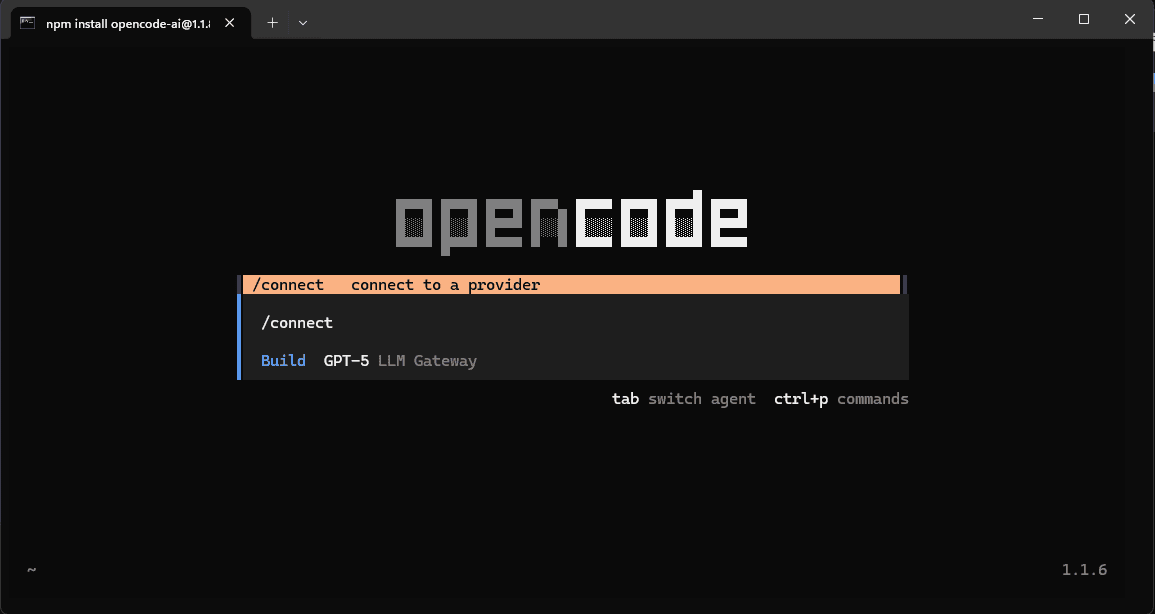
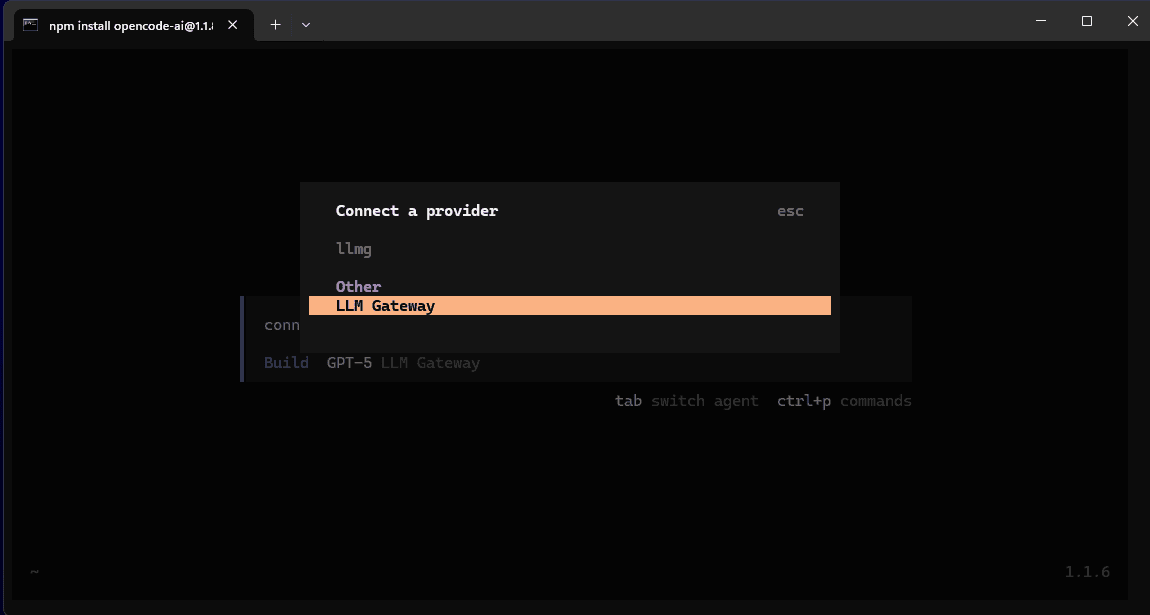
Step 3: Select LLM Gateway Provider
In the provider list, scroll down to find "LLM Gateway" under the "Other" section and select it:
Step 4: Enter Your API Key
OpenCode will prompt you for your API key. Enter your LLM Gateway API key and press Enter:
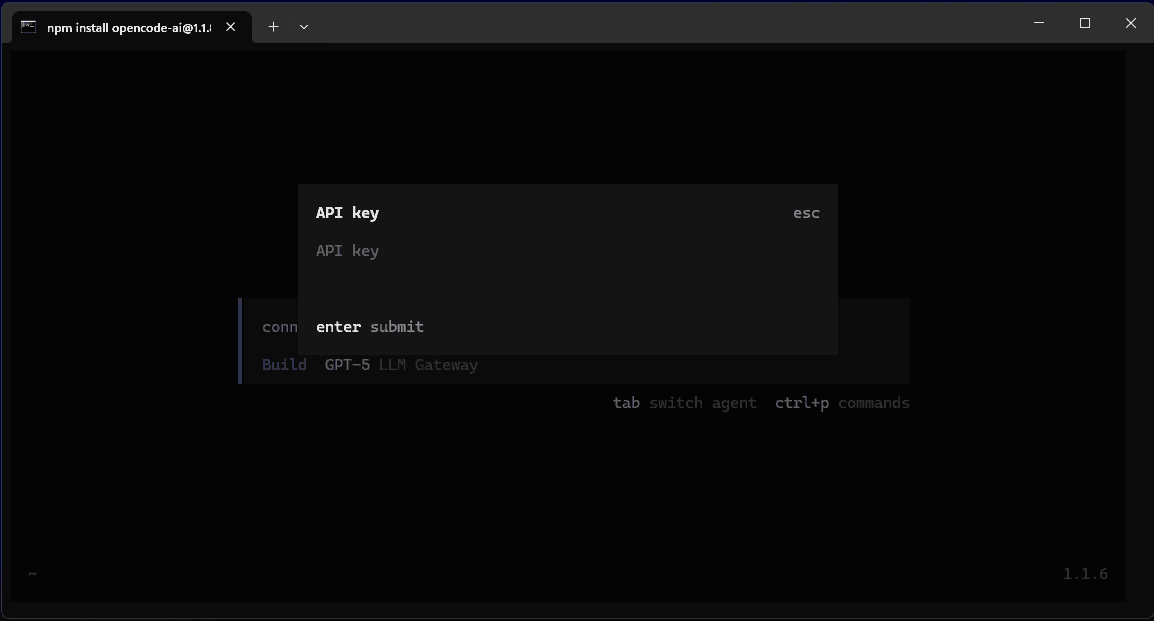
OpenCode will automatically save your credentials securely.
Where to get your API key:
Sign up for LLM Gateway and create an API key from your dashboard.
Step 5: Start Using OpenCode
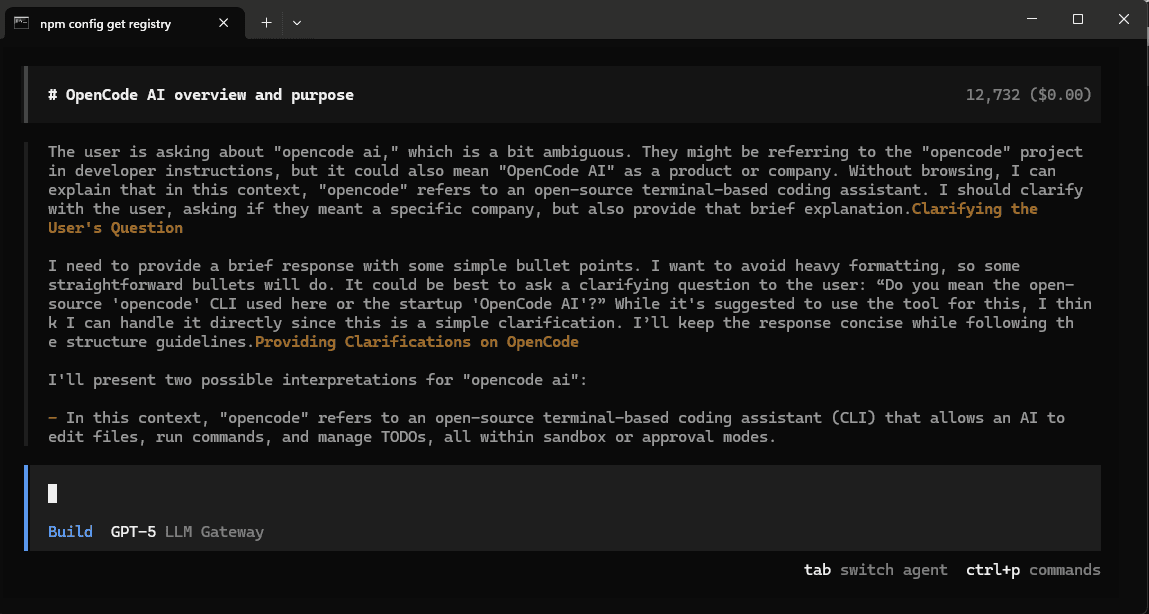
You're all set! OpenCode is now connected to LLM Gateway. You can start asking questions and building with AI:
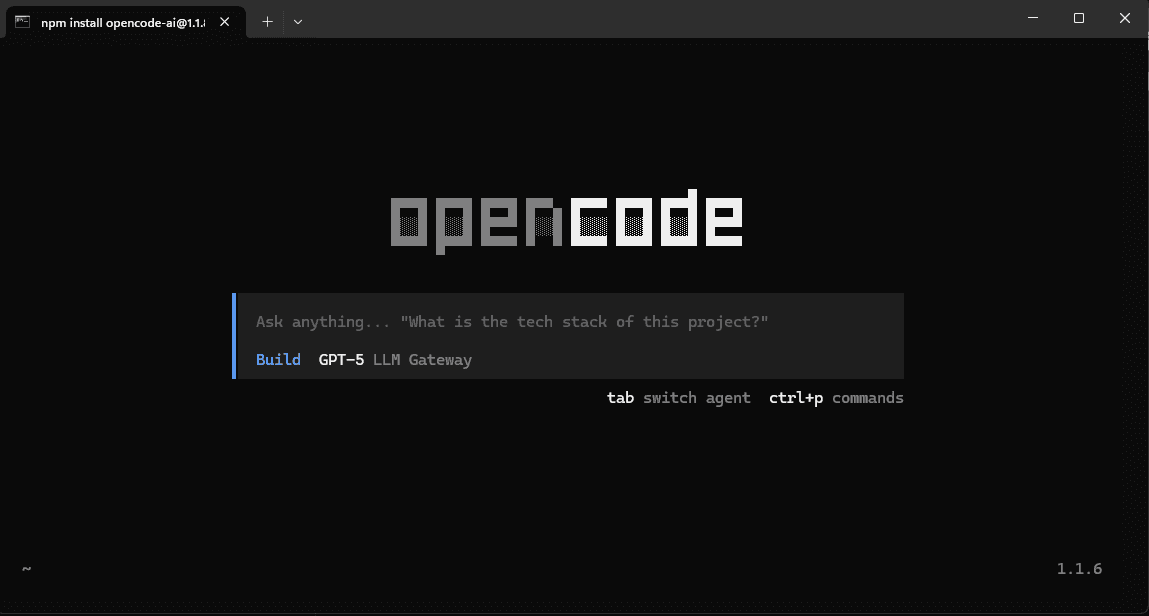
Try asking OpenCode about your project or request help with coding tasks:
Why Use LLM Gateway with OpenCode?
- Access to 75+ models: Use models from OpenAI, Anthropic, Google, Meta, and more
- Cost optimization: Track usage and leverage LLM Gateway's caching and routing features
- Unified billing: One account for all providers instead of managing multiple API keys
- Flexibility: Switch between models without changing authentication or configuration
- Cost savings: Take advantage of LLM Gateway's volume discounts
Adding More Models
You can add any model from the models page to your configuration. Simply add more entries to the models object in your config.json:
1{2 "provider": {3 "llmgateway": {4 "models": {5 "gpt-5": { "name": "GPT-5" },6 "gpt-5-mini": { "name": "GPT-5 Mini" },7 "deepseek/deepseek-chat": { "name": "DeepSeek Chat" },8 "meta/llama-3.3-70b": { "name": "Llama 3.3 70B" }9 }10 }11 }12}
1{2 "provider": {3 "llmgateway": {4 "models": {5 "gpt-5": { "name": "GPT-5" },6 "gpt-5-mini": { "name": "GPT-5 Mini" },7 "deepseek/deepseek-chat": { "name": "DeepSeek Chat" },8 "meta/llama-3.3-70b": { "name": "Llama 3.3 70B" }9 }10 }11 }12}
After updating config.json, restart OpenCode to see the new models.
Switching Models
To change your default model, update the model field in your configuration:
1{2 "model": "llmgateway/gpt-5-mini"3}
1{2 "model": "llmgateway/gpt-5-mini"3}
Or select a different model directly in the OpenCode interface.
Troubleshooting
OpenCode asks for API key every time
Make sure the provider ID in your config.json matches exactly: "llmgateway" (all lowercase, no spaces).
404 Not Found errors
Verify your baseURL is set to https://api.llmgateway.io/v1 (note the /v1 at the end).
Models not showing up
After editing config.json, restart OpenCode completely for changes to take effect.
Connection timeout
Check that you have an active internet connection and that your API key is valid from the dashboard.
Configuration Tips
- Global configuration: Use
~/.config/opencode/config.jsonto apply settings across all projects - Project-specific: Place
opencode.jsonin your project root to override global settings for that project - Model selection: You can specify different models for different types of tasks using OpenCode's agent configuration
Get Started
Ready to enhance your OpenCode experience? Sign up for LLM Gateway and get your API key today.